
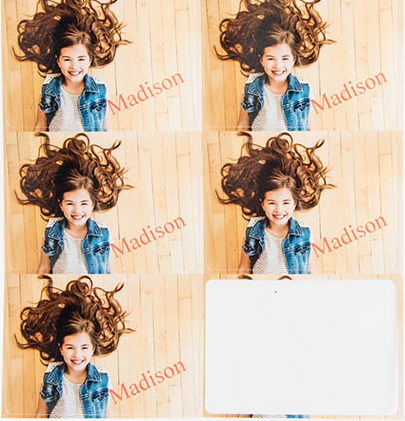
Our Die Cut Wallets arrive to you as a pre-perforated sheet of 8 total Wallets. Each Wallet measures 2 5/16 x 3 5/16 inches and has rounded corners.
As the Die Cut Wallets are trimmed down from the standard 2.5 x 3.5 inch size, we have a few tips and recommendations we would like to share to ensure you are happy with your Die Cut Wallet prints :)
Things to note:
1. You will want to choose an image with ample background space. If you choose an image with the subject cropped close to the edge, you risk a part of the subject being trimmed off from the Wallet print.
If you have an upcoming shoot with a photographer for your child's senior pictures, your child's sports or dance team headshots, etc., you will want to advise the photographer not to crop too close to the subject.
If you have already completed the photo shoot and have images you wish to print as wallets containing little to no background space, we can help as we offer photo editing services. For example, you can work with our Photoshop representative to see if the background can be extended. For more information on our Photoshop editing services, click here!
2. Always, always, always review the crop of your Wallets before checking out with your item(s). Upon adding your Die Cut Wallets to your cart, you will be shown a preview of how your image will print. The preview will display a red dotted line which represents the trim line. Any part of your image you do not want getting trimmed, you will want to be sure is within the red dotted line. Any part of your image that exceeds past the red dotted line is subject to be trimmed.
The ROES desktop ordering system does have a different layout than the website. We have included examples of the preview you will see in both systems below for your reference!
In ROES:
Good Crop-

Bad Crop-

On the website:
Good Crop-

Bad Crop-

3. We have blank Die Cut Wallet Photoshop templates available if you want to edit and crop your image before uploading and ordering on the site or in ROES! The Die Cut Wallet Photoshop template will display the bleed zone, trim line, and safe zone to ensure your Die Cut Wallet print turns out exactly how you would expect!
*Click here to access the Photoshop templates*
Comments
0 comments
Please sign in to leave a comment.